

Use this for walk-ins, phone bookings, or a booking from a site that isn't connected to TIOO. Owners, admins and managers can do it.
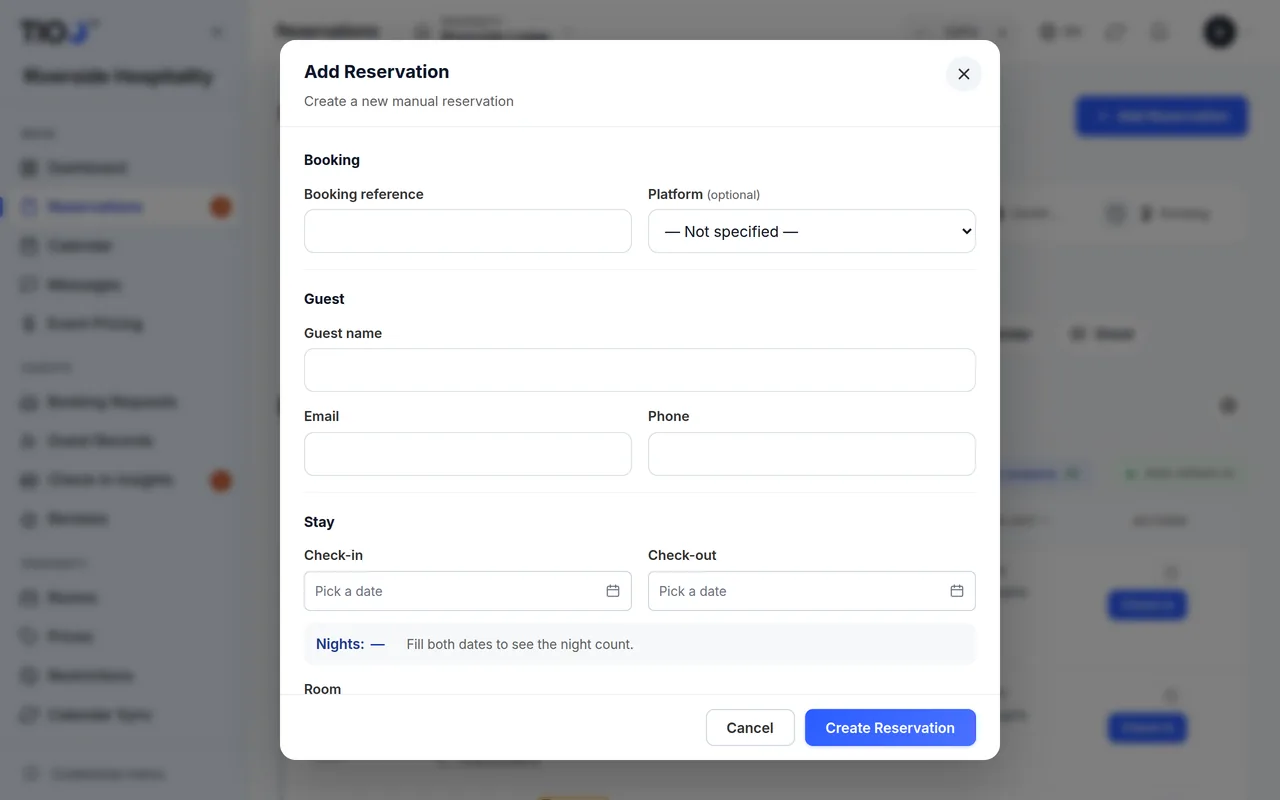
Add the booking
- Open Reservations and press Add Reservation (on a phone, the + button).
- Under Booking, type the Booking reference if you have one. Leave it blank and TIOO makes one for you, such as TIOO-4K7Q2M.
- Choose the Platform the booking came from. For a walk-in or a phone call, leave it on — Not specified —.
- Under Guest, type the Guest name. Add the Email and Phone if you have them.
- Under Stay, pick the Check-in and Check-out dates. The number of nights shows underneath.
- Pick the Room. Once both dates are filled in, the list splits into Available rooms and rooms Booked for these dates.
- If the guest arrives early or leaves late, press Change next to Standard times and fill in Early check-in or Late check-out. Blank means your normal times from the house rules.
- Under Guests & price, fill in Adults, Children, Infants and the Total price.
- Open More details to add the Car registration (separate several with commas) and the Vehicle type.
- Press Create Reservation.
The name, both dates and the room are needed. Everything else can be added later.
Note: If you type a booking reference that another booking already uses, TIOO asks whether this is the same booking. Press Yes, add to this booking to add this room to it, or Use a different reference.
A booking with several rooms
- Before you press Create Reservation, press Add another room.
- Pick the room and type its own Total price.
- Repeat for each room.
All rooms share the guest, the dates and the booking reference. Each room gets its own door code.
Your own door code
If you see Custom door PIN under More details, you can choose the guest's door code yourself (4 to 9 digits). Leave it blank and TIOO picks one. We recommend 6 digits or more.
Starting from the calendar
On the Calendar, press New reservation, or click a free night in a room and press New reservation. The same box opens with the room and dates already filled in. See The calendar.
What happens after you save
- The booking shows on Reservations and on the Calendar.
- If the room or its front door has a smart lock connected, TIOO makes the door code straight away. The guest sees it in their guest app once the stay starts. See How door codes work.
- TIOO doesn't email the guest straight away. If you added their email, they get the check-in reminder email the day before they arrive. To send the check-in link now, see Send a guest their check-in link.
- If more than one person uses your dashboard and the stay starts today or tomorrow, the others get a notification that says who added it.
- Booking.com and Airbnb are not told directly. They only see the nights as taken if they read your TIOO calendar link. See Let the booking sites' calendars see your TIOO bookings.
Related guides
- The Reservations page — today, tomorrow, upcoming, and what the colours meanFind any booking, see who arrives and leaves today, and read the coloured label on each row.
- Edit a booking — dates, room, price, arrival time, carChange any detail of a booking, and what TIOO does when you move the guest to another room.
- The calendar — see your rooms, block dates, click to bookSee every room's bookings at a glance, find a free room, close dates, and start a booking from a free night.
- How door codes workWhen TIOO makes a guest's door code, when the guest can see it, which doors it opens and when it stops working.
- Send a guest their check-in linkWhere the check-in link is, when TIOO emails it for you, and what happens when the guest finishes.