

Reservations is the page you will open most. It shows every booking that hasn't ended yet, from every source: booking sites such as Booking.com and Airbnb, your own website, and bookings you added by hand.
Owners, admins, managers and receptionists can open it. A team member with a custom role needs See reservations.
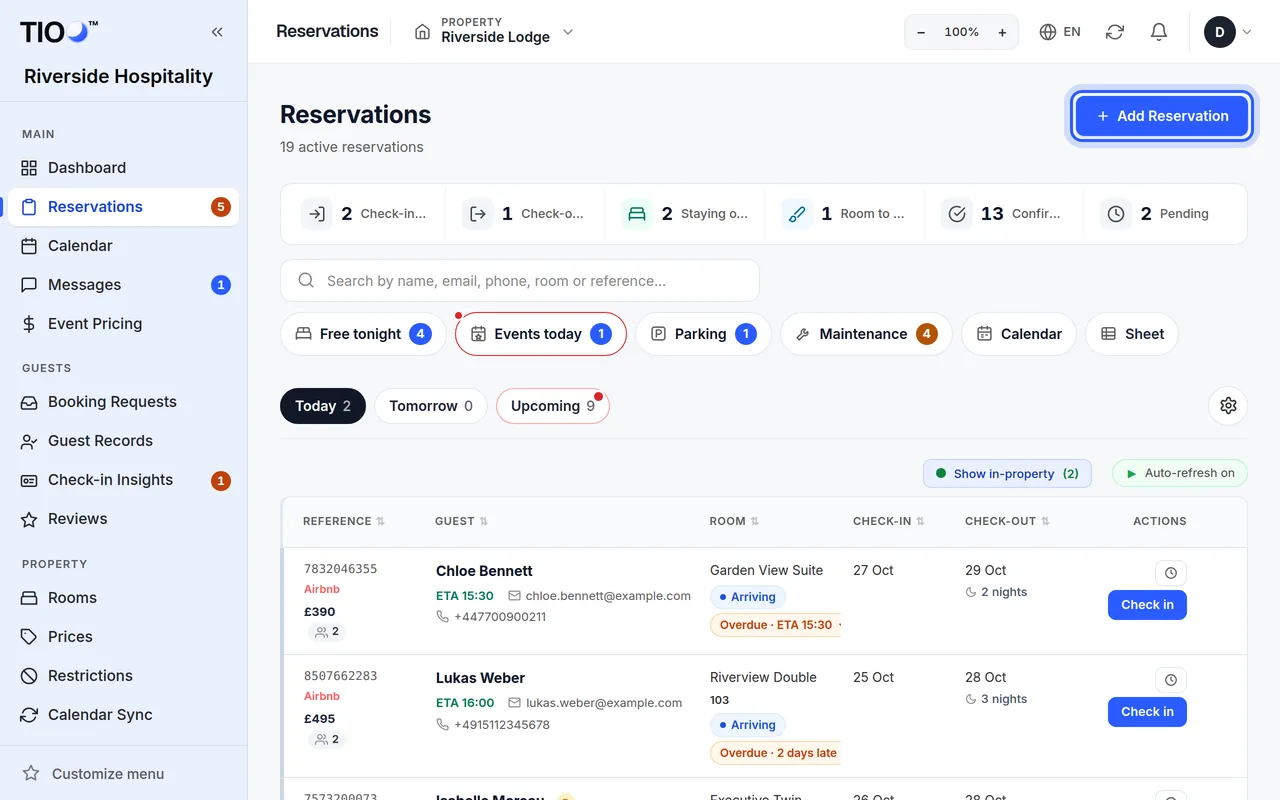
The counts at the top
The row of numbers at the top shows today's check-ins and check-outs, guests Staying over, and how many bookings are Confirmed and Pending. If your plan includes cleaning, you also see Rooms to clean — tap it to open the cleaning board.
Next to the search box are quick buttons such as Free tonight (rooms nobody has booked tonight). They open a panel at the side, so you stay on the page.
Three lists: Today, Tomorrow, Upcoming
- Today's Reservations — guests arriving today, guests leaving today, and guests in the middle of their stay.
- Tomorrow's Reservations — tomorrow's arrivals and departures. Turn on Show all guests to also see guests who are already staying.
- Upcoming Reservations — everything after tomorrow, grouped by day. The tabs All, New, Pending, Confirmed, Checked In and No Show filter the list.
Depending on your settings you see one list at a time (with Today, Tomorrow and Upcoming buttons) or all three one after another. To change it, open Reservations settings (the gear button) and choose Tabs or Continuous under Layout. Open on picks the list you see first.
Stays that have ended leave this page, except today's departures. Find them in Guest Records under Past.
What the labels and colours mean
Each row on Today and Tomorrow has a label next to the room name. The row colour matches the label.
| Label | Colour | What it means |
|---|---|---|
| Arriving | white row, blue label | The guest is expected but hasn't checked in yet. |
| Checked In | amber | The guest finished online check-in, or someone checked them in by hand, but nothing shows yet that they have got in. |
| Arrived | green | The guest opened the door with their code or the button in their guest app, or someone pressed Mark as arrived. Shown for the first 2 hours. |
| In Property | darker green | The guest arrived more than 2 hours ago. |
| Stay over | green | The guest arrived on an earlier day and isn't leaving today. |
| To Depart | red | The guest leaves today and your check-out time hasn't passed yet. |
| Departed | grey | The check-out time has passed, or the guest was checked out. |
A guest who should leave today but never arrived keeps the Arriving label, so you can tell a no-show from a real departure.
If you see PAUSED next to the label, the guest's door access is paused.
You can change these colours for your own screen: Reservations settings → Row colours. Choose Full colour, Edge only or No colour. This only changes what you see, not what the rest of the team sees.
The Overdue pill
On Today's list, an Overdue pill appears on a guest who is still Arriving when:
- they gave an arrival time and it is more than an hour past it — Overdue · ETA 14:00;
- they gave no arrival time and it is more than an hour past your check-in time — Overdue · since 15:00 (the check-in time from your house rules, or the early check-in time on that booking);
- their check-in day has already passed — Overdue · 1 day late.
Click the pill to choose Mark as arrived or Mark as no-show. See Mark a guest as arrived, undo it, mark a no-show.
Show in-property
Show in-property on Today's list shows or hides guests who are in the middle of their stay. It is on to start with, and TIOO remembers your choice for your account. When it is off and nobody arrives or leaves today, a short line says how many guests are in — click show to see them.
Search
Type in the search box to find a booking by name, email, phone, room or booking reference. The search looks at every date, not only today. Results are grouped (today's matches, tomorrow's, then the rest). Press the × in the box to go back to the lists.
What's on a row
- The guest name opens the booking page.
- Once the guest has checked in, the booking reference opens their guest app.
- Small marks tell you more: 2 ROOMS (one booking with several rooms), the number of people, R (returning guest), ID to check (a guest ID on this booking needs checking — click it to open it in Check-in Insights), ⚠ (the stay overlaps blocked dates), PIN (the door code), Check-in started (the guest began online check-in but hasn't finished), the arrival time and the car registration.
- The buttons at the end: the eye (View details), the clock (Early check-in & late check-out), Edit, Check in (until the guest is checked in) and Cancel.
On a phone
Phones show each booking as a card with the most important facts. Tap the round arrow at the right end of the status line for the email, room, door code, price and dates. The ⋮ button opens View details, Edit, Early check-in & late check-out, Manual check-in and Cancel reservation. Tablets and computers show the table.
Note: If Auto-refresh on shows above Today's list, new and changed bookings appear by themselves. Otherwise, reload the page to see the latest.
Related guides
- Add a booking by hand (walk-in or phone)Type in a booking yourself — guest, dates, room, price — and what TIOO does after you save it.
- Mark a guest as arrived, undo it, or mark a no-showTell TIOO a guest is here (or never came), and how to take it back if you got it wrong.
- Edit a booking — dates, room, price, arrival time, carChange any detail of a booking, and what TIOO does when you move the guest to another room.
- The calendar — see your rooms, block dates, click to bookSee every room's bookings at a glance, find a free room, close dates, and start a booking from a free night.