

Open Calendar in the menu. Owners, admins, managers and receptionists can see it.
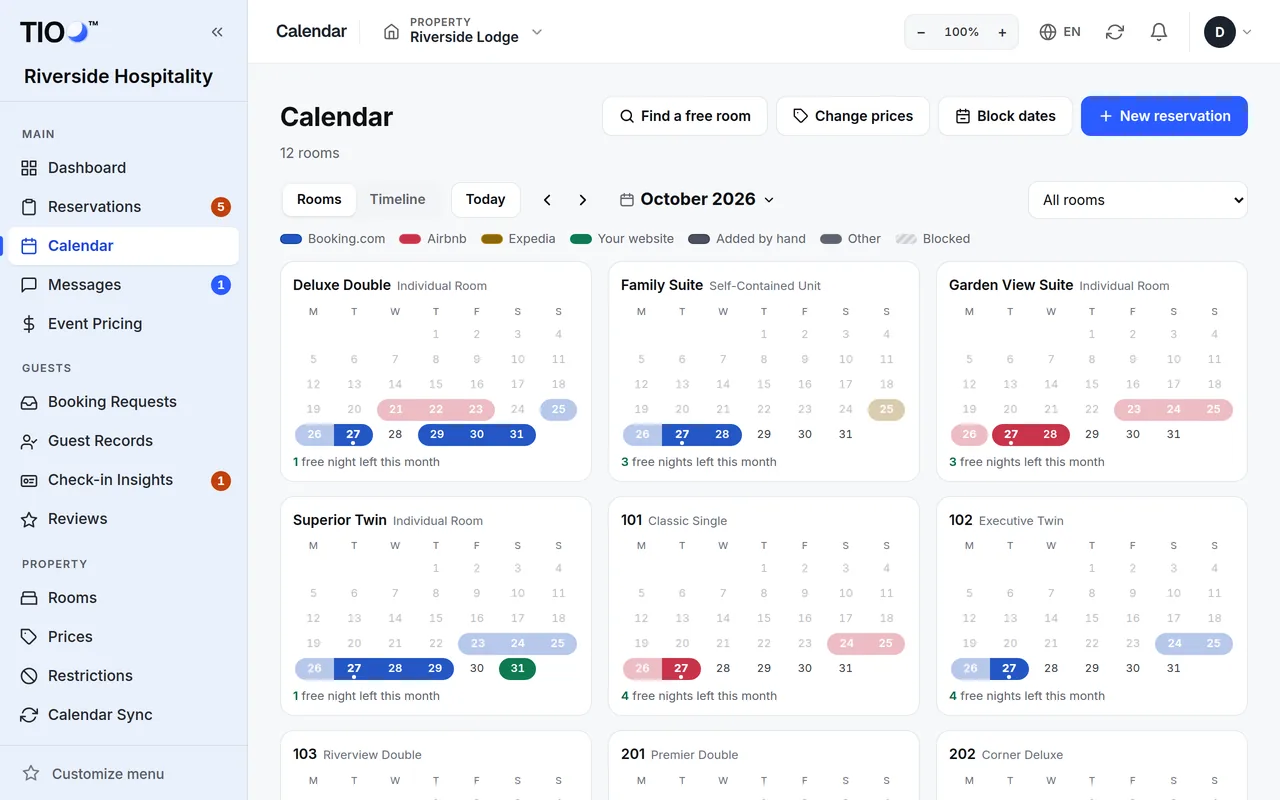
Two ways to look
Use the Rooms and Timeline buttons at the top to switch.
- Rooms — one small month for each room. Each booking is a coloured band; the colour shows where the booking came from (press Colour key to see which colour is which). Each room says how many free nights are left this month. Tap a room to open its big month: bookings show with the guest's name and free nights show the price. Use ‹ and › to go to the next room; on a phone you can also swipe.
- Timeline — every room down the side and the days across. Use Earlier, Later, Today and Go to date to move, and Days shown to see more or fewer days. Filter calendar by room shows one room, and the search box finds a guest or booking reference. Colour by colours bookings by Status or Platform.
Click a booking to see its room, dates, guests and price. Press Open reservation for the full booking.
Find a free room
- Press Find a free room.
- Pick the Check-in date and the number of Nights.
- TIOO lists the rooms that are free for all those nights, with the price. Press Book to start a booking for that room, or View to see it on the calendar.
Click to book
- Click a free night in a room. On a computer, in the Timeline, you can drag across several nights.
- In the small box, use − and + to set the number of nights. TIOO warns you if some of the nights are already booked or blocked.
- Press New reservation. The booking box opens with the room and dates filled in. See Add a booking by hand.
Block dates
Close a room for maintenance, an owner stay, a deep clean or anything else. Owners, admins and managers can do this.
- Press Block dates (or click a free night and press Block dates in the small box).
- Tick the rooms, or Select all rooms.
- Pick From and To. Both days are included — for one night, pick the same date twice.
- Choose a Reason and add Notes if you like.
- Press Save block.
Blocked nights can't be booked on your website. Your TIOO calendar link shows them as "Blocked" (the reason is never shown), so booking sites that read it see the nights as taken — see Let the booking sites' calendars see your TIOO bookings. If a booking from a booking site lands on blocked dates, TIOO shows a ⚠ on that booking.
To change or remove a block, click it on the calendar, then save the changes or press Delete block.
Put the rooms in your own order
On the Rooms view, press and hold a room (on a phone), or drag it with the mouse, to move it to another place. Alt and the arrow keys move it too. Rooms stay inside their own property. The order is saved for you only and is used in the Timeline too. Press Reset order to go back to the normal order.
Related guides
- Add a booking by hand (walk-in or phone)Type in a booking yourself — guest, dates, room, price — and what TIOO does after you save it.
- The Reservations page — today, tomorrow, upcoming, and what the colours meanFind any booking, see who arrives and leaves today, and read the coloured label on each row.
- Let the booking sites' calendars see your TIOO bookingsGive each booking site your room's TIOO export link so it closes nights you have already sold.