

TIOO has no direct link to Booking.com. Instead, it reads each room's calendar link (an iCal link) from Booking.com and checks it again and again. When a guest books, the booking appears on your Reservations page by itself.
Do this once for every room you sell on Booking.com.
1. Copy the link from Booking.com
- Log in to your Booking.com Extranet.
- Go to Rates & Availability, then Sync calendars.
- Find the room type that matches your TIOO room and copy its calendar link. It starts with
https://admin.booking.com/.
2. Paste it into TIOO
- Open Calendar Sync in the menu.
- Click Connect a calendar at the top, or Connect a booking site on the room's card.
- Under Room, pick the TIOO room.
- Under Platform, pick Booking.com. A short reminder of where to find the link appears.
- In Listing Name on Platform, type the room's name as Booking.com shows it. This is optional, but it helps you check later that the right link is on the right room.
- Paste the link into Calendar Feed URL.
- Click Add Connection.
TIOO checks the calendar straight away. The upcoming bookings already on that calendar come in, and from now on the page checks it regularly. The top of the page says how often.
3. Check it works
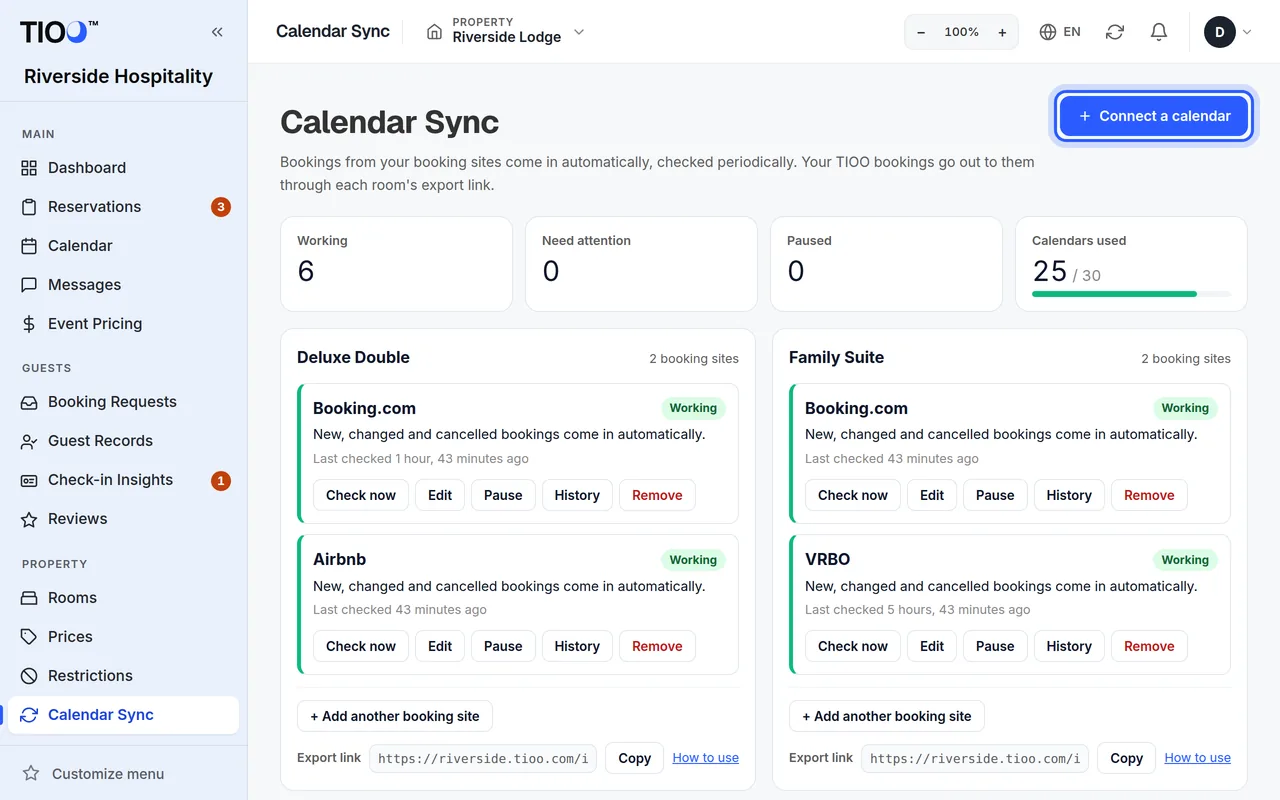
Each room card shows its booking sites and their state, for example Working, and when it was last checked. The tiles at the top count calendars that are Working, that Need attention, and that are Paused.
- Click Check now to check one calendar straight away.
- Click History to see each check and how many bookings were new, changed or cancelled.
What comes through, and what doesn't
A calendar link only carries dates and, sometimes, a name. It does not carry the guest's email, phone number, booking reference or price. To fill those in:
- Send Booking.com's booking emails to your TIOO address: Forward your booking emails.
- For bookings you already have, upload Booking.com's reservations export: Bring in your past bookings.
When a guest cancels on Booking.com, the booking leaves the calendar and TIOO cancels it too.
Also send your TIOO bookings to Booking.com
So far Booking.com only sends bookings to TIOO. To stop Booking.com selling nights you have already sold on your own website, give Booking.com the room's TIOO export link too. See Let the booking sites see your TIOO bookings.
Good to know
- How many calendars you can connect depends on your plan. The Calendars used tile shows how many you have used. See Which plan do I need?.
- Pause stops checking one calendar for a while; Resume starts it again. Remove stops bookings coming in from that site for that room. Bookings already in TIOO stay.
- Owners, admins and managers can connect calendars.
- Stuck? See Calendar not syncing, or use the link at the bottom of the page to ask TIOO to set it up for you.
Related guides
- Let the booking sites' calendars see your TIOO bookingsGive each booking site your room's TIOO export link so it closes nights you have already sold.
- Forward your booking emails so guest details fill inSend Booking.com and Airbnb booking emails to your TIOO address and each booking gets the guest's email, phone and booking reference.
- My calendar isn't syncingBookings from Booking.com or Airbnb aren't showing up? Read the state on the calendar and work down this list.