

Every TIOO plan includes a website where guests can see your rooms and book you directly, with no booking-site commission. TIOO makes the first version for you when you sign up, with ready-made pages such as Home, About, Rooms and Contact. This guide takes you from that first version to a live website.
Owner or admin only. Managers and receptionists don't see the website builder.
1. Open the website builder
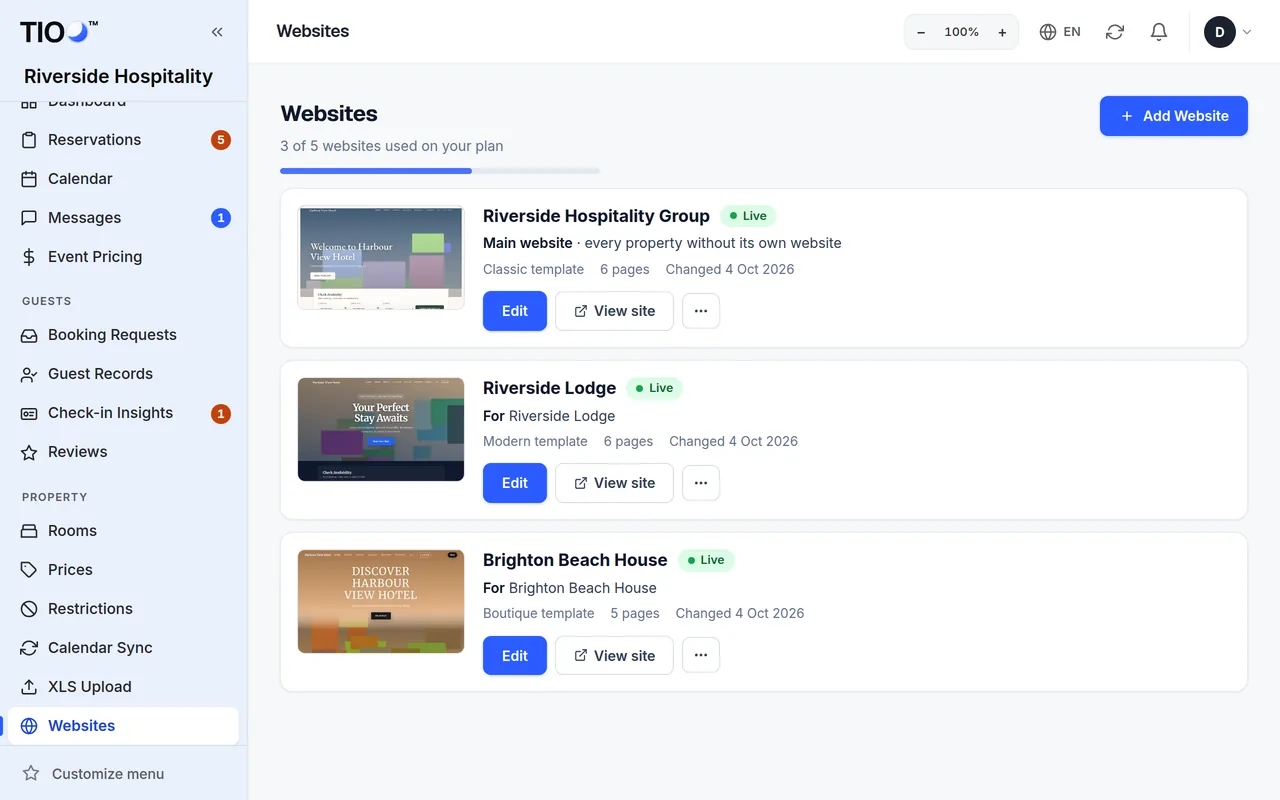
- Open Website in the menu on the left. You see your website as a card, with its picture, its address and a word that says where it stands: Live, Maintenance or Not published.
- Press Edit on the card. The Overview opens.
Along the top of every website page there is a row of tabs: Overview, Template, Branding, Pages, Gallery, Blog, Area guide, Announcement, Snapshots and Domain. A tab with a plan name on it (for example Growth) is part of a higher plan.
The Overview shows your template, whether the website is published, your address, and quick links to everything else.
2. Pick a template
A template is the whole look: fonts, colours, the menu at the top and the way each section is framed. Your words and photos stay the same when you change it.
- Open the Template tab.
- Press Preview on a design you like. The preview shows your own pages and text in that design. Use Computer and Phone to see both sizes. Nothing changes yet.
- Press Use this template.
- Read the box that opens. It says what changes. Choose whether to keep your own colours and fonts or use the template's.
- Press Use this template again to confirm.
What happens next:
- Your pages, words, photos, gallery and logo stay as they are.
- TIOO saves a backup of your whole website first. For 24 hours you can undo the switch in one click, and the backup stays in Snapshots.
There are 18 templates. Five come with every plan (Modern, Classic, Boutique, Bold and Blank). Five more come with Growth and higher plans, and eight more with Pro and Enterprise. A design from a higher plan shows Upgrade to … instead of Use this template; you can still preview it.
Note: Want the template's ready-made pages too (for example a Gallery page you don't have yet)? Press Add starter pages on the Template tab. It only adds pages you don't have, and never changes your own.
3. Add your logo and colours
- Open the Branding tab. The page is called Branding & Design.
- Under Logo & Branding, press Upload File next to Logo Image and choose your logo. No logo yet? Type your business name in Logo Text (if no image) instead.
- Under Colors, pick your Primary colour (buttons, links) and Accent colour. Leave a colour empty to use the template's own.
- Under Typography, pick a Font Pair if you want different fonts.
- Under Contact Info, check the phone and email shown on the website. Leave the email empty to use your TIOO inbox address.
- Press Save Branding.
The preview on the Branding page shows your changes as you make them. A few settings only show after you save — they are marked on the page.
On a phone, the preview sits at the top of the screen. Drag its handle down to make it bigger, or tap the handle to open or close it.
Other parts of the Branding page you can come back to later: the menu style, button style, footer, social links, and SEO & Analytics (the text search engines show, and your Google Analytics or Meta Pixel numbers).
4. Check your pages
TIOO's first pages already have sample words and photos. Change them to your own before you publish:
- Open the Pages tab.
- Press a page to open it in the page editor.
- Change the words and photos, then press Save.
The page editor is explained step by step in Edit a page. Your rooms and prices come from your room settings, not from the page — see Rooms and prices on your website.
Careful: Sample reviews and sample figures (like "4.9 stars") that TIOO puts in a new website are never shown to visitors. In the preview they carry a Sample badge so you can see them. Real reviews show once you have them.
5. Look at it before visitors do
- On the Overview, press Preview to open the website as visitors will see it. Before you publish, only you and your team can open it.
- Open it on your phone too. Most guests book from a phone.
6. Publish
- Open the Overview.
- Press Publish Site.
The word on the website card changes to Live. Visitors and search engines can now find the website. To take it down again, press Unpublish on the Overview. Nothing is deleted, and you can publish again at any time.
Note: Changes you save later go live straight away. To show a "back soon" page while you rework things, use Maintenance Mode under Website settings on the Overview.
Your web address
Your website's address is your business's own name on tioo.com, for example yourhotel.tioo.com. It is shown on the website card and on the Overview.
Want your own address, like yourhotel.com? Open the Domain tab. Your own domain comes with Growth and higher plans (on Starter it is a paid add-on). The Domain tab explains the two records to add where you bought the domain.
Good to know
- Undo a mistake: the Snapshots tab keeps saved copies of your whole website. TIOO also saves one before big changes like switching templates.
- More than one website: on Growth and higher plans each property can have its own website. Your plan shows how many websites you can publish on the Website page.
- Need a hand? The Overview has a link to ask the TIOO team to build the website for you.
Related guides
- Edit a page — sections, text, photos and the live previewChange the words and photos on a website page, add or move sections, and see the result before you save.
- Rooms and prices on your website, and the booking formWhich rooms guests see, where the prices come from, and what happens when a guest books on your website.
- Your TIOO plan — upgrade, downgrade, pause or cancelChange your plan, when changes start, and what you keep on Free.