

Each page of your website is a stack of sections: a big photo at the top, a block of text, your rooms, a gallery, reviews, a contact form and so on. You edit a page by changing its sections, and a live preview beside them shows the result.
Owner or admin only.
Open a page
- Open Website in the menu, then press Edit on your website.
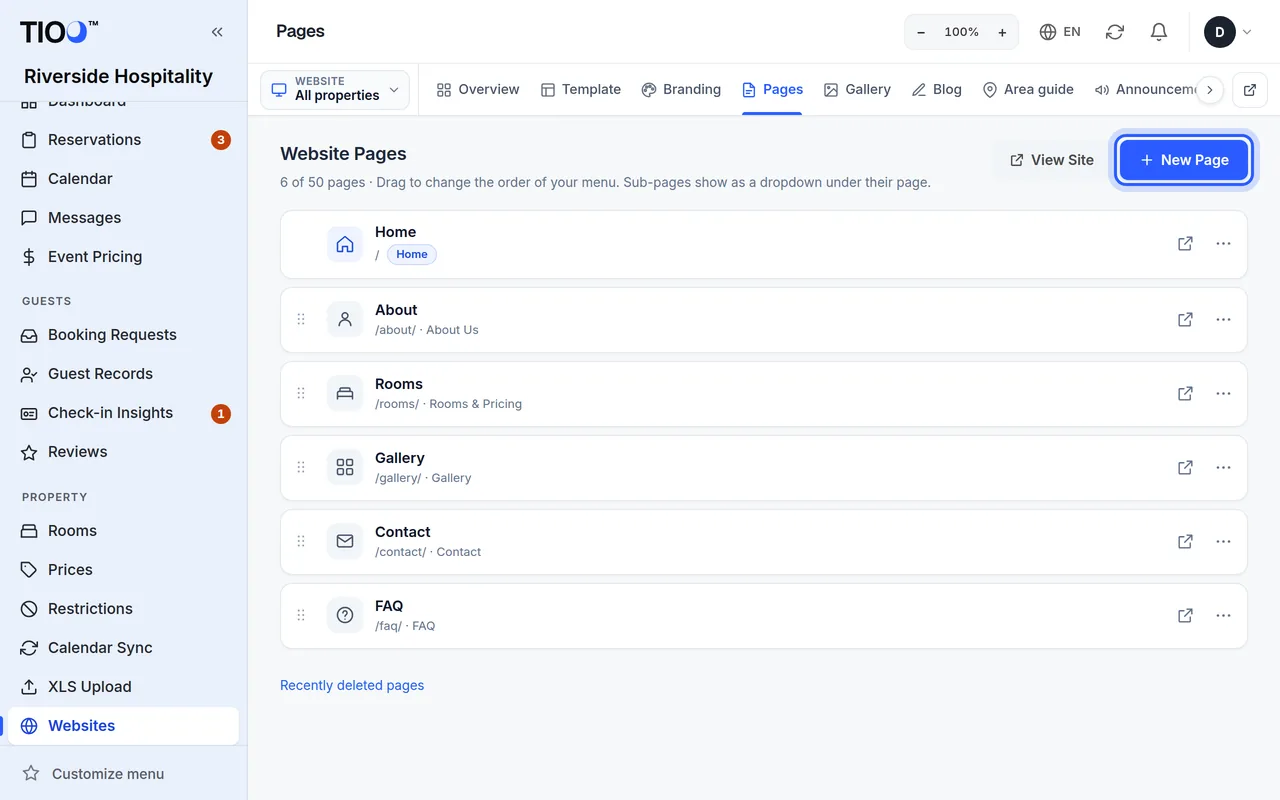
- Open the Pages tab. You see every page, with the home page first.
- Press the page you want to change. The page editor opens.
To add a new page, press New Page on the Pages tab, type a Page Title, choose a Page Type (it decides which sections the page starts with) and press Create Page.
On the Pages tab you can also drag pages to change the order of your website's menu. To take a page out of the menu, use its settings (see Page settings below). A page that isn't in the menu still works; it just has no menu link.
What you see in the page editor
- Left: the list of Sections, top to bottom in the same order as on the page.
- Right: the live preview of the page.
- At the top (on a computer): Save, Cancel and the Undo and Redo arrows. On a phone, Save and a × button (discard changes) float at the bottom of the screen; the Undo and Redo arrows appear there once you change something.
Note: The preview shows your changes straight away. Visitors only see them after you press Save.
Change words and photos
- Press a section in the list to open it. You can also click the section in the preview — the editor opens that section for you.
- Type in the boxes. Bigger text boxes have a small toolbar for bold, lists and links.
- To change a photo, press Replace (or Upload photo when there is none yet) and choose a picture from your computer or phone. Photos from phones (including iPhone HEIC photos) are fine; TIOO makes them the right size.
- No photo of your own? Press Stock photos to search free photos and pick one.
- Fill in Short description (helps blind visitors and Google) under each photo — a few words such as "Double room with a sea view".
- Press Save.
Content and Design tabs
Most sections have two tabs at the top:
- Content — the words, links, photos and list items.
- Design — layout, colours, spacing and similar look settings.
TIOO remembers which tab you last used for each kind of section.
Add, move, hide or remove sections
- Add a section: press Add section at the bottom of the list, or the + on a section to add one below it. Pick the kind of section from the list; each has a short description.
- Move a section: open the ⋯ menu (More actions) on the section and choose Move up or Move down. On Growth and higher plans you can also drag a section by its handle.
- Hide a section without deleting it: press the eye button (Hide from website). Hidden sections stay in the list, dimmed, with a Hidden label. Press the eye again (Show on website) to bring it back.
- Copy a section: ⋯ → Duplicate.
- Remove a section: ⋯ → Remove section, then confirm.
Nothing reaches your website until you press Save.
Undo and Redo
Made a mistake? Press the Undo arrow. Redo puts it back. Undo remembers your recent changes since you opened the page, including adding, moving and removing sections.
Keyboard shortcuts on a computer: Ctrl+Z (Undo), Ctrl+Shift+Z or Ctrl+Y (Redo) and Ctrl+S (Save). On a Mac use Cmd instead of Ctrl. While you type in a text box, Undo first undoes your typing in that box.
Cancel (on a phone, the × next to Save) throws away everything since your last save. TIOO asks Discard changes? first; press Keep editing if you change your mind.
The preview on a computer
Above the preview, choose Desktop, Tablet or Mobile to see the page at that size. The desktop preview shows the real width of a computer screen, made smaller to fit.
Hover over the preview to see each section outlined. Click one to open it in the list.
The preview on a phone
On a phone the preview sits in a strip at the top of the screen, above the section list.
- Drag the handle at the bottom of the strip down to make the preview bigger, or up to make it smaller. TIOO remembers the height you like.
- Tap the handle to open or close the strip.
- When you tap into a section's boxes, the preview scrolls to that section, so you can see what you are changing.
- Press the expand button next to the size buttons for Full-screen preview. Press Back to editing (or your phone's back button) to return.
Page settings
On the Pages tab, open the ⋯ menu (More actions) on the page and choose Settings. The Page settings box lets you change:
- the Page name and the Name in the menu;
- whether it has a menu link (Show in the menu);
- whether the page is published — Off makes it a draft that only you and your team can see;
- More settings (search engines…): the title and description search engines show.
The home page is always shown on your website.
Page address and Google
- Page address: in the page settings you can change the address of a page (the part after the
/, for example/rooms/). The old address keeps working: visitors and Google are sent to the new one, so saved links never break. The home page always lives at/. - Search engine check: the page settings box lists what Google looks at — a description for the page, a title that isn't too long (about 60 characters) and a description of about 160 characters at most, and a short description under every photo. It updates as you type. It is only advice; you can always save.
- Google Search Console: to see how people find you on Google, add your website in Google Search Console, choose the HTML tag check and copy the code. In TIOO open Branding → SEO & Analytics, paste it into Google Search Console code (the whole tag is fine too), press Save, then press Verify in Google.
- Your own domain: once your own domain works, your website's address on tioo.com sends visitors and Google to your own domain, so Google sees one address for each page.
Legal pages from a starter
At the bottom of the Pages tab, Legal pages — add from a starter offers five ready-made pages: Terms & Conditions, Cancellation & refund policy, Cookie policy, Accessibility statement and Company details (the Impressum websites in Germany and Austria need). Press Add and TIOO fills the page in from your business details, your house rules, the cookie services switched on for the website and whether you take payments online. The page is linked at the bottom of every website page, not in the menu.
Fill in the parts in [square brackets] yourself. These texts are a starting point, not legal advice — please check them with your own adviser. In the preview you see a note saying so; visitors never see it.
If your website already has a page of that kind, Open your page opens it instead — your own text is never replaced. The website overview lists Pages you may need when, for example, guests can book but there is no Terms page yet.
Good to know
- Rooms and prices in a rooms section come from your room settings, not from the page. Change them on Rooms and Prices — see Rooms and prices on your website.
- Two tabs open? If you switch to another website in a second tab, TIOO refuses to save from the first one, so changes never land on the wrong website. Reload the page and try again.
- Deleted a page by mistake? Deleted pages go to Recently deleted, where you can bring them back.
- Want the whole website back as it was? Use the Snapshots tab — see Your website in 15 minutes.