

Rooms come first. Calendars, bookings, door codes and cleaning jobs all belong to a room, so add your rooms before anything else.
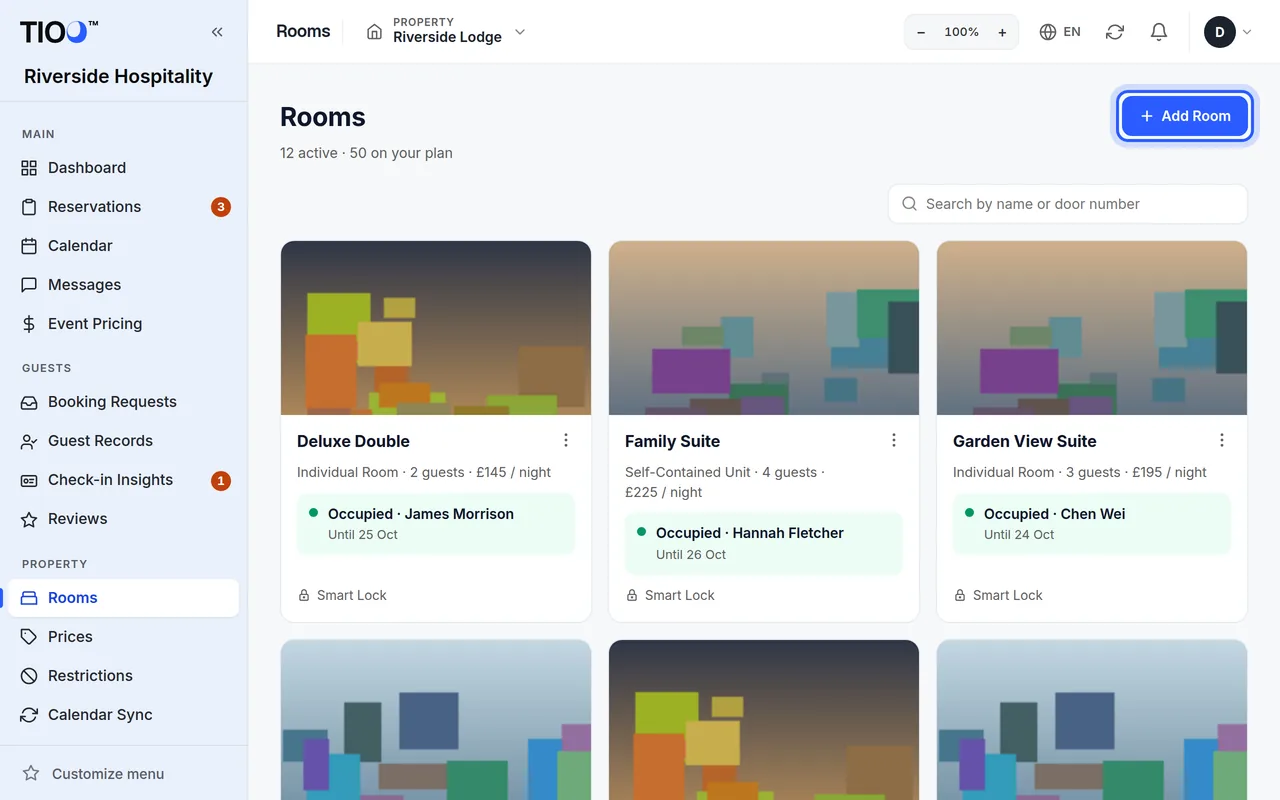
Add a room
- Open Rooms in the menu.
- Click Add Room (or Add Your First Room if you have none yet).
- Type the Name guests will see, for example "Deluxe Double". This is the only box you must fill in. You can add the rest later.
- Fill in the other parts of the form (see below).
- Click Create Room.
The room now shows on your Rooms page, on your website and on the booking form.
What each part of the form is for
- Basics
- Name: what guests see on your website and booking page.
- Door Number: what is written on the real door, such as "204" or "Ground Floor Left". Guests see it in their guest app so they know which door is theirs. It is not shown on your website.
- Short Description and Description: the text on your website's room cards and room page.
- Photos: a Main Image and up to 10 Gallery Images. Use Upload for your own photos or Stock Photo to pick a free photo. Drag gallery photos to change their order.
- Price & guests: Price per Night, Max Occupancy, Bed Configuration and room size. The price per night is what your own website charges. For different prices on certain nights, use Prices in the menu.
- Room details: Room Type, Location and Bathroom Type, shown on your website.
- How guests get in: pick a Method: Lockbox, Key Safe, Key Pickup Point, Reception/Front Desk, Meet & Greet or Custom Instructions, and fill in the details (for example the lockbox code). Guests see these details in their guest app once their stay begins.
- Visibility: untick Active to hide a room from your website and booking form. Bookings that come from booking sites still arrive.
Note: Smart Lock only appears as a method once a smart lock account is connected. Giving a room its lock sets the method for you. See Give each room its lock.
See your rooms as cards or a list
At the top of Rooms, pick Cards (a photo for each room) or List (one line per room). TIOO remembers your choice. Until you pick one, businesses with 12 rooms or more see the list.
The list shows each room's number and name, type, how many it sleeps, its normal price, how guests get in, whether its calendar sync is working, and who is in it tonight. Click Room, Sleeps or Price / night to sort, and click again to sort the other way. When your rooms are of several types, a box lets you show one type only. On a phone, each room is one short line: number, name, tonight and ⋯.
Change a room
- Open Rooms.
- Click the ⋯ button on the room, then Edit.
- Change what you need and click Save Changes.
Changes show on your website, booking page and guest app as soon as you save.
Stop using a room
On Rooms, click ⋯ then Archive…. The room stops taking new bookings and leaves your website. Its calendar connection is switched off and any smart lock is unassigned. Bookings already made, guests and history are kept. You can bring it back from the Archived tab with Reactivate.
Hotels and holiday lets
- Hotels, B&Bs and guest houses have many rooms. How many you can add depends on your plan. The Rooms page shows how many you have and your plan's limit. See Which plan do I need?.
- Holiday lets and apartments are one unit. The menu item is called Property instead of Rooms, and there is no Add Room button: you edit the one property with Edit.
Next step
Connect each room to its booking sites: Connect your Booking.com calendar.
Related guides
- Connect your Booking.com calendarPaste each room's Booking.com calendar link into TIOO so new bookings appear by themselves.
- Which plan do I need?What each TIOO plan includes, side by side, so you can pick the one that fits.
- Give each room its lock, and set the front doorMatch each TTLock lock to the room it opens, choose your front door, and what happens to guests' codes when you change a lock.