

Cleaning shows which rooms need cleaning, who is doing them and what's done. Rooms appear by themselves when a guest checks out — you don't need to create anything first.
Cleaning is on the Starter plan and up. Owners, admins and managers can use this page.
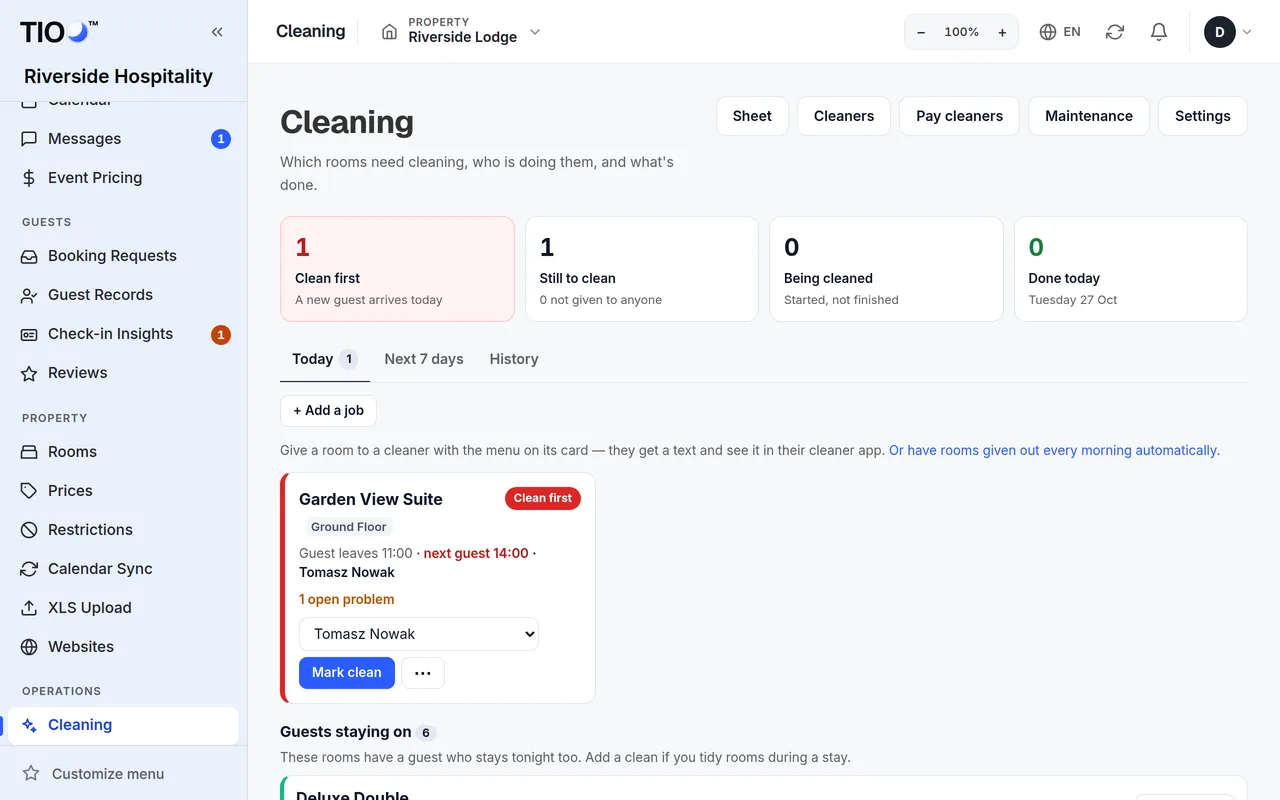
The four numbers at the top
- Clean first — rooms where a new guest arrives today. Do these before anything else.
- Still to clean — and how many are not given to anyone yet.
- Being cleaned — started, not finished.
- Done today.
The page updates itself every minute or so, so you can leave it open.
Today
Each room is a card. The label on it says where it stands:
| Label | Means |
|---|---|
| Clean first | A new guest arrives in this room today (the card shows the time). |
| To clean | A guest leaves or has left today. |
| Missed | A guest left on an earlier day and the room wasn't cleaned. It stays here for up to 3 days, until it's cleaned or a new guest moves in. |
| Being cleaned | A cleaner has started. |
| Done / Skipped | Finished, or you chose to skip it. |
The card also shows when the guest leaves, the cleaner, how much of the checklist is ticked and any photos. If the room has an open maintenance problem, there is a link to it.
Give a room to a cleaner
- On the room's card, open the box that says Nobody yet.
- Pick the cleaner.
It saves straight away. The cleaner sees the room in their cleaner app, and gets a text if they have a mobile number and texts to cleaners are switched on in this page's Settings.
No cleaners yet? The card shows Add a cleaner to give rooms out — see Add cleaners and give them the phone app.
Tick a room off
- Mark clean — the room is done.
- The ⋯ menu has Start (cleaning has begun), Skip (no clean needed) and Details (the job page with checklist, notes and photos).
- A room marked Done or Skipped has Reopen if you made a mistake.
Your cleaners can do the same from their own app.
Guests staying on (stay-over cleans)
Under the board, Guests staying on lists rooms whose guest stays tonight too. These are not counted as rooms to clean. If you tidy rooms during a stay, click Add a clean next to the room — it becomes a job called "Stay-over clean".
Jobs that aren't a checkout
Click + Add a job for anything else, like a deep clean. Pick the Room and Date, optionally a Cleaner and instructions, then click Add job.
Next 7 days
Every checkout for the coming week, day by day. Give rooms to cleaners ahead of time with the same Nobody yet box. If a booking is cancelled or moved, its job is removed or moved too, and the cleaner gets a text.
History
Past jobs. Filter by Period (last 30 days, 90 days or 12 months), Status (Done, Skipped, Never finished) and Cleaner.
Note: Want rooms given out every morning by themselves? Click Settings at the top of this page and, under Every morning, tick Make a cleaning job for each room with a checkout today and Give each job to a cleaner automatically. Owner or admin only.
Related guides
- Add cleaners and give them the phone appAdd the people who clean your rooms, choose their rooms, and invite them to the cleaner app.
- Your day in the cleaner appFor cleaners — see your rooms, start and finish a clean, tick the checklist, add photos and report problems.
- The Reservations page — today, tomorrow, upcoming, and what the colours meanFind any booking, see who arrives and leaves today, and read the coloured label on each row.