

Each person who helps run your business should have their own sign-in. That way you choose what they can see, and the activity log shows who did what. Team members come with the Starter plan and up.
Owner or admin only. An admin can invite managers and receptionists; only the owner can invite another admin.
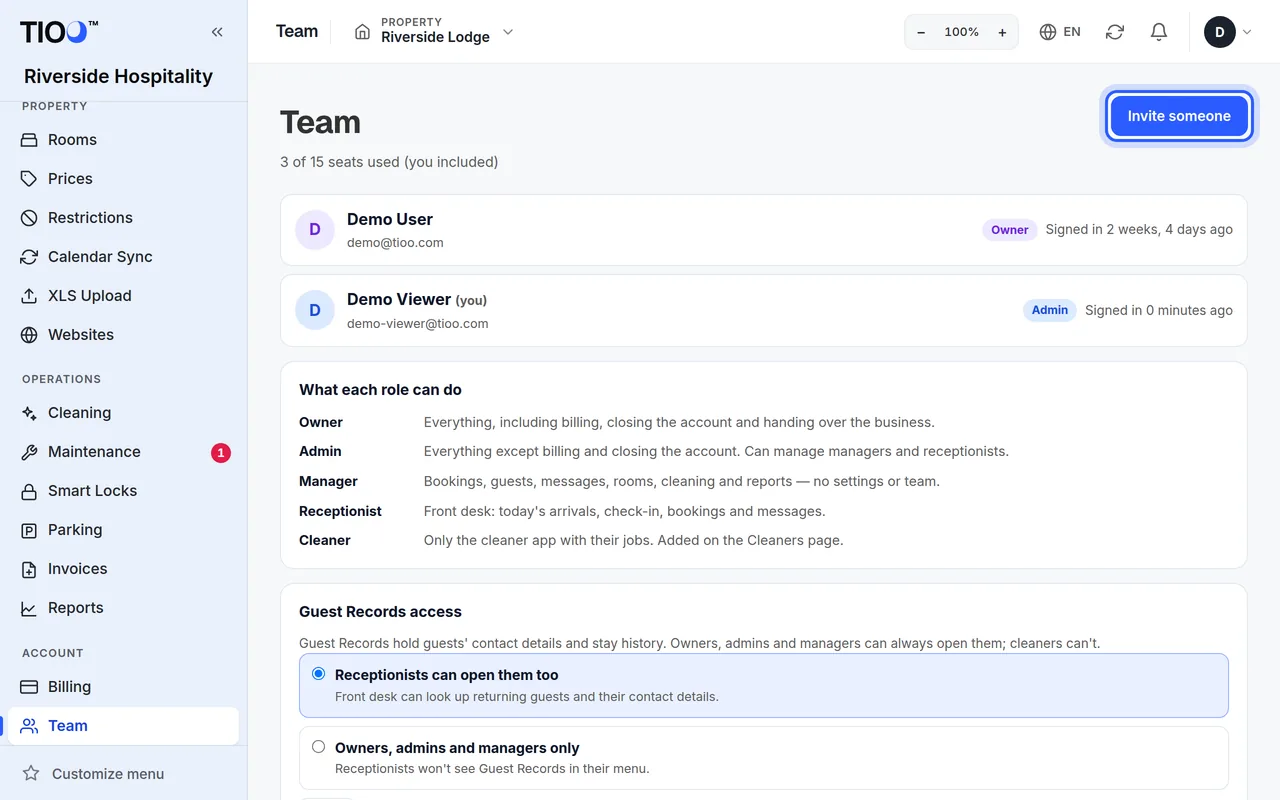
Invite someone
- Open Team in the menu (under Account).
- Press Invite someone.
- Fill in First name, Last name, Email and, if you like, Mobile number (optional).
- Choose a Role: Admin, Manager or Receptionist. Each role has one line saying what it can do; the full list is in What each role can do. Roles you made yourself (Growth and higher plans) are listed here too.
- Have more than one property? Under Properties they can see, tick the ones this person works at. None ticked means all properties. (This applies to managers and receptionists.)
- Press Send invite.
What happens next:
- Someone new to TIOO gets an email with a link to set their password. The link works for 3 days.
- Someone who already uses TIOO for another business is added straight away and gets an email saying so. They sign in with the login they already have.
On the Team page the person shows as Invited until they first sign in.
The invite didn't arrive
- Ask them to check their spam folder.
- On Team, find the person. If their email couldn't be sent, it says Email failed next to them.
- Press Resend invite. You can resend once a minute.
Still nothing? Check the email address is right. To fix a typo, remove the person and invite them again with the right address.
Seats on each plan
Each plan includes a number of people, and you (the owner) count as one:
| Plan | People |
|---|---|
| Free | Just you |
| Starter | 2 |
| Growth | 5 |
| Pro | 15 |
| Enterprise | No practical limit |
When every seat is used, the Team page shows Upgrade for more seats. See Your TIOO plan.
Note: Cleaners don't use team seats. They have their own limit and are added on the Cleaners page, where they get the simple cleaner app instead of the dashboard. See Add cleaners. If you invite someone who is already one of your cleaners, TIOO refuses — change them on the Cleaners page instead.
Change or remove someone
- On Team, press the person.
- Change their Role or Properties they can see, then press Save.
- To take away their access, press Remove from team.
Removed people can no longer sign in to this business. Their past work stays, and conversations assigned to them become unassigned. To bring someone back, invite them again with the same email.
Who can change whom:
- The owner can change and remove everyone.
- An admin can change and remove managers and receptionists, but not other admins and not the owner.
- Nobody can change the owner. To make someone else the owner, the owner uses Make owner… on that person's page.
Good to know
- Front desk and guest records: on the Team page, Guest Records access decides whether receptionists can open guest records too.
- Sign-in safety: each person can turn on a sign-in code for their own account under Settings → Sign-in security. The Team page shows who has.