

Invoices come with the Starter plan and up. Owners, admins and managers can make, send and mark invoices; receptionists and cleaners don't see them.
Before your first invoice
Open Invoices and press Settings to fill in, once (owner or admin only):
- your business name, address and VAT / tax number;
- a Logo (press Upload logo);
- the Number prefix — for example
INV-gives INV-0001, INV-0002…; - Payment due after (days), the usual Tax % and Tax name (VAT, GST, IVA…);
- Payment instructions — how guests can pay you, for example your bank details.
Press Save settings. These are filled in on every new invoice, and you can still change them on each one.
Make an invoice from a booking (quickest)
- Open the booking on Reservations.
- Press Create invoice.
- The guest's name and email, every room of the booking, the nights and the price per night are filled in. Check them.
- Add any extra lines with Add a line — for example a late check-out. Use a negative price for a discount or a deposit already paid.
- Press Save and email to guest, or Save as draft to send it later.
Make an invoice from scratch
- On Invoices, press New invoice.
- Under Who is it for?, type in Find a booking or guest and pick one — or just type the Name on the invoice and email.
- Under What are you charging for?, fill in each line: description, quantity and price each.
- Check the Due date, Currency and tax, and add a Note for the guest if you like.
- Press Save and email to guest or Save as draft.
TIOO adds up each line, the tax and the total for you. The currency is your business currency unless you choose another.
What the guest gets
An email with the invoice and a PDF, in the guest's language (from their booking) when that is English, Spanish, Portuguese, French, German or Italian (otherwise in English). The email has a payment link. When you have a card payment provider connected (Stripe, PayPal or Paystack, in Settings), the guest can pay online with it.
Note: On the invoice page, Payment link has a Copy button. Paste the link into a WhatsApp or text message if that is easier for the guest.
Statuses
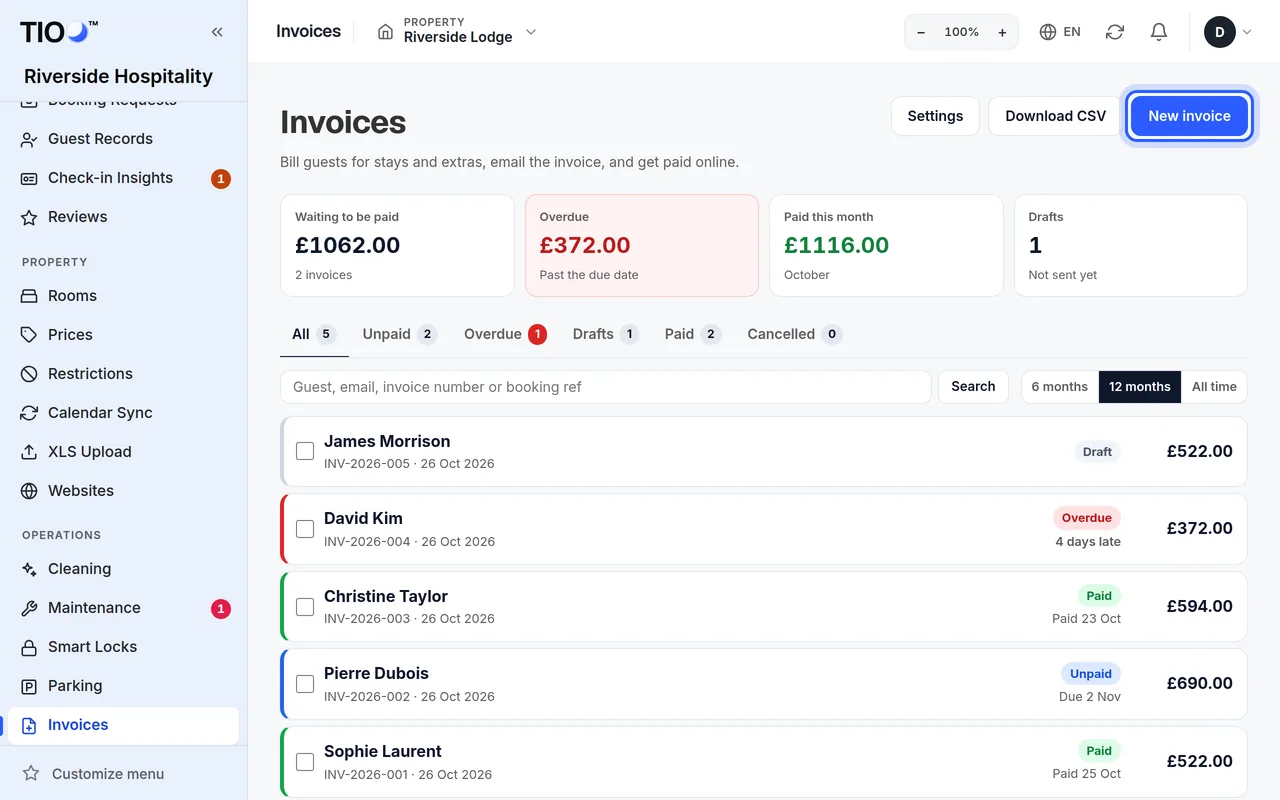
The tabs on the Invoices page sort invoices by status:
- Drafts — saved, not sent.
- Unpaid — sent, waiting to be paid.
- Overdue — past the due date and not paid yet. TIOO moves invoices here by itself.
- Paid
- Cancelled — kept in your records; the guest can't pay it.
The tiles at the top show what is waiting to be paid, what is overdue and what was paid this month, per currency.
Mark an invoice as paid
- Paid online: TIOO marks the invoice paid by itself when the full amount arrives through your payment provider. If the guest paid less, or in another currency, you get a notification to check it instead.
- Paid another way (cash, card machine, bank transfer): open the invoice and press Mark as paid.
Marked it paid by mistake? Press Mark as unpaid. (This isn't possible when the guest paid online.)
Other things you can do on the invoice page
- Send to guest, Send again or Send reminder — emails it again.
- Download PDF.
- Edit — only while the invoice isn't paid or cancelled. If the guest already has it, send it again afterwards.
- Cancel invoice — keeps it in your records.
- Reopen as draft — for a cancelled invoice.
- Delete draft — only drafts with no payments can be deleted.
- History — who did what to this invoice.
Many invoices at once
Owners and admins can tick several invoices on the list and use Send or Mark paid for all of them.
Good to know
- Invoices are numbered one after the other with your prefix. Changing the prefix starts a new sequence; old invoices keep their numbers.
- Search the list by guest, email, invoice number or booking reference, and choose 6 months, 12 months or All time.