

Guest Records is the list of everyone who has stayed with you, is staying now, or is coming. It is built from your bookings, so every booking appears here, whether it came from a booking site, your website or was added by hand.
Reservations is for running today and the days ahead. Guest Records is for looking things up: "Has this person stayed before?", "What was the phone number of last week's guest?".
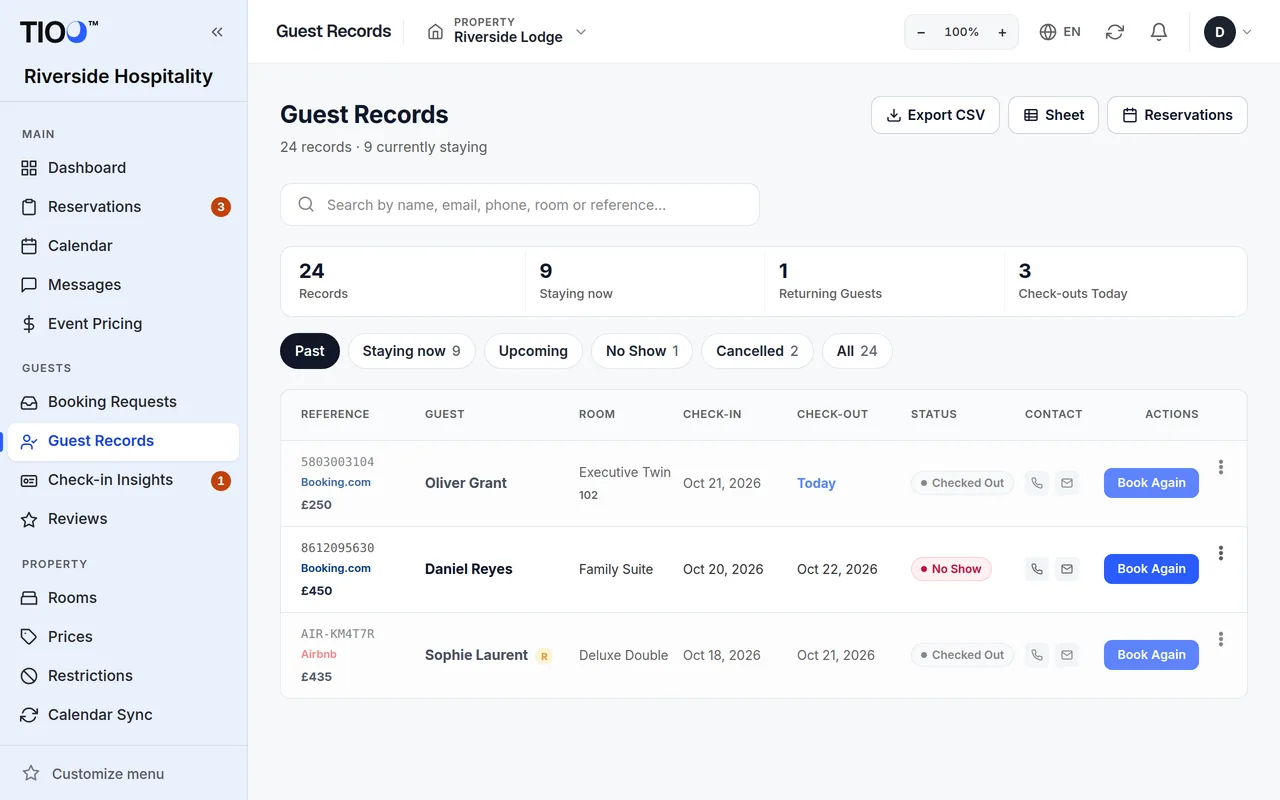
The tabs
- Past: guests who have left. This is the tab that opens first.
- Staying now: guests whose stay includes today.
- Upcoming: guests who haven't arrived yet.
- No Show: bookings marked as no-show.
- Cancelled: cancelled bookings, kept as a record.
- All: everything.
With several properties, the list shows the property you have picked at the top of the dashboard.
Find a guest
- Open Guest Records.
- Type in the search box: a name, email, phone number, room or booking reference.
- Press Enter.
The search looks in the tab you are on. Switch to All to search everything.
What you can do from a row
- Click the guest's name to open their guest record: contact details, stay dates, room, and their guest app link with Copy link (useful when a guest has lost it). The record says Portal active when the guest can use their guest app now.
- View reservation opens the booking.
- Book Again (past guests) opens a new booking with their name, email and phone filled in.
- Guests who have stayed before are marked Returning guest.
A booking and a guest record — the difference
Every booking shows in Guest Records. A booking gets a full guest record (with a guest app link) when the guest finishes online check-in, or when you check them in from the dashboard. Until then the row only has what the booking has. A booking from a booking site's calendar often has just a name until the guest checks in or the booking email is read.
Download the list
Click Export CSV to download the tab you are looking at as a spreadsheet file. It follows your tab, your search and the property you have picked.
Note: Downloading is limited to owners, admins and managers, because it copies every guest's contact details.
Who can open Guest Records
Owners, admins and managers can always open it. Receptionists can too, unless the owner or an admin changes it: on the Team page, under Guest Records access, choose Owners, admins and managers only. Cleaners never see Guest Records.
Related guides
- The Reservations page — today, tomorrow, upcoming, and what the colours meanFind any booking, see who arrives and leaves today, and read the coloured label on each row.
- Online check-in: what guests fill in, and choosing the stepsTurn the check-in steps on or off, per property, and know when guests can use the link.
- What each role can doThe five ready-made roles — owner, admin, manager, receptionist and cleaner — and exactly what each one can see and change.