

Your check-in and check-out times are some of the most important settings in TIOO, because many parts of the app follow them. The same page holds the house rules guests accept when they check in online.
Owner or admin only.
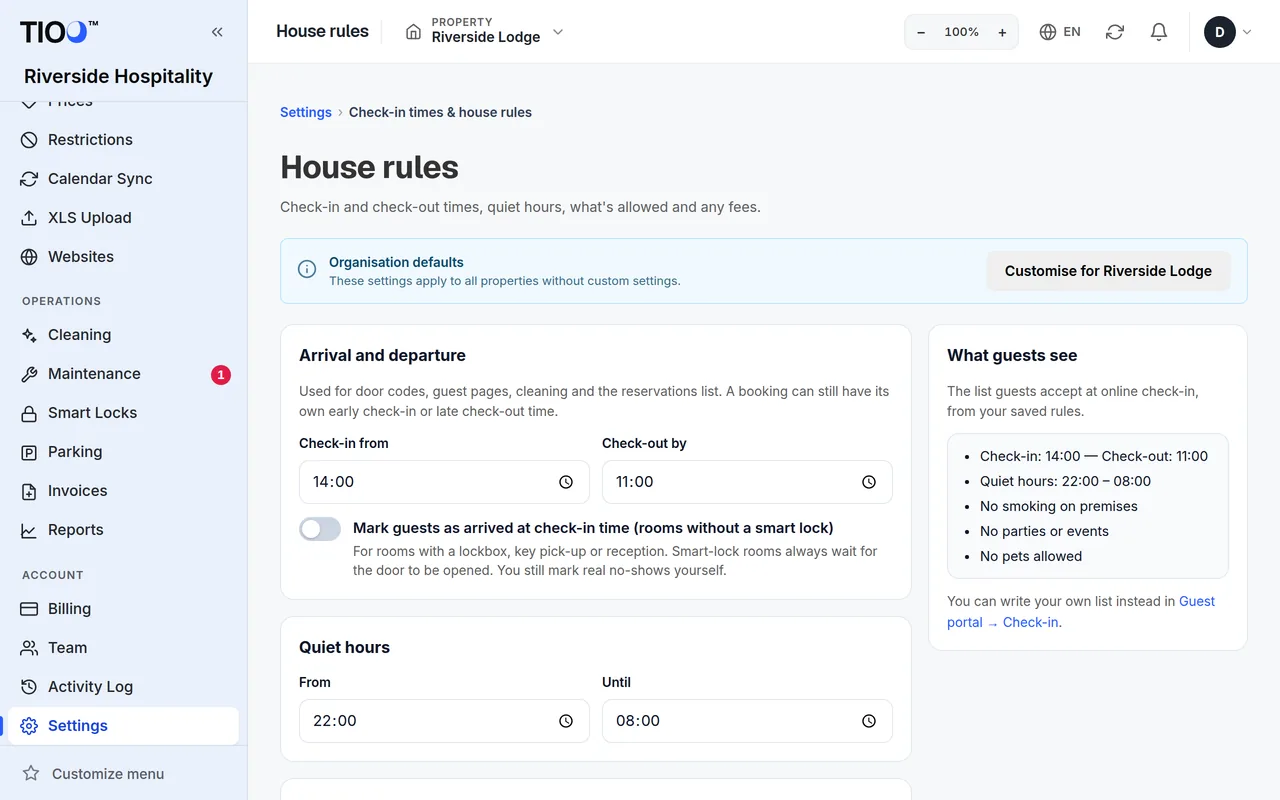
Open the page
- Open Settings in the menu.
- Press Check-in times & house rules.
Arrival and departure
- Set Check-in from and Check-out by.
- Press Save house rules.
These two times are used for:
- Door codes — guests see their door code in their guest app from the check-in time, and the code stops working at the check-out time.
- Guest pages — the guest app shows these times.
- Cleaning — the cleaning board knows when rooms become free.
- The reservations list — rows change from "To depart" to "Departed" once the check-out time has passed.
Note: A single booking can still have its own early check-in or late check-out time. Set that on the booking itself; it wins over these times for that stay.
Mark guests as arrived at check-in time
Switch on Mark guests as arrived at check-in time (rooms without a smart lock) if your rooms use a lockbox, key pick-up or reception. TIOO then marks those guests as arrived at check-in time, as if they had opened the door. Rooms with a smart lock always wait for the door to be opened. You still mark real no-shows yourself.
Quiet hours
Set From and Until to show guests when to keep the noise down.
What's allowed
Switch each one on or off:
- Smoking allowed — when off, you can set a Fine for smoking.
- Parties or events allowed
- Pets allowed — with Guests must ask first and a Pet fee if you charge one.
- Daytime visitors allowed — when off, guests see "No visitors".
Other fees
Fill in only the fees you charge, and leave the rest empty:
- Late check-out, per hour
- Early check-in
- Lost key
Amounts are in your business currency. To change the currency, go to Settings → Business details.
Extra rules and the welcome message
- Extra rules — write one rule per line, for example "Please take your shoes off inside".
- Welcome message — shown on the last page of online check-in.
Check-out instructions (what guests should do on the day they leave) are written separately, in Guest portal → Content. See Guest portal settings.
What guests see
The What guests see box on the page shows the list guests accept at online check-in, made from your saved rules. Save first to see your changes there.
Want your own wording instead of this list? Write it in Guest portal → Check-in. Guests then accept your text instead.
More than one property
If you have several properties, the box at the top of the page says which rules you are looking at:
- Organisation defaults — the rules every property without its own uses. Saving here changes them all.
- Pick one property in the property picker at the top, then press Customise for … to give it its own times and rules.
- Reset to defaults puts that property back on the shared rules.
Good to know
- Times are in your property's time zone (or your business's, if the property doesn't have its own).
- If something can't be saved — a time missing or a fee that isn't a number — nothing is saved and the page shows what to fix.
Related guides
- Guest portal settings — check-in steps, look, host card, WiFi, FAQs and videosWhat each tab of the guest portal settings does, and how to give one property its own settings.
- Online check-in: what guests fill in, and choosing the stepsTurn the check-in steps on or off, per property, and know when guests can use the link.
- How door codes workWhen TIOO makes a guest's door code, when the guest can see it, which doors it opens and when it stops working.