

Messages holds every conversation with your guests in one place: emails, texts (SMS), WhatsApp and messages sent from your website's contact form. Messages are on every plan.
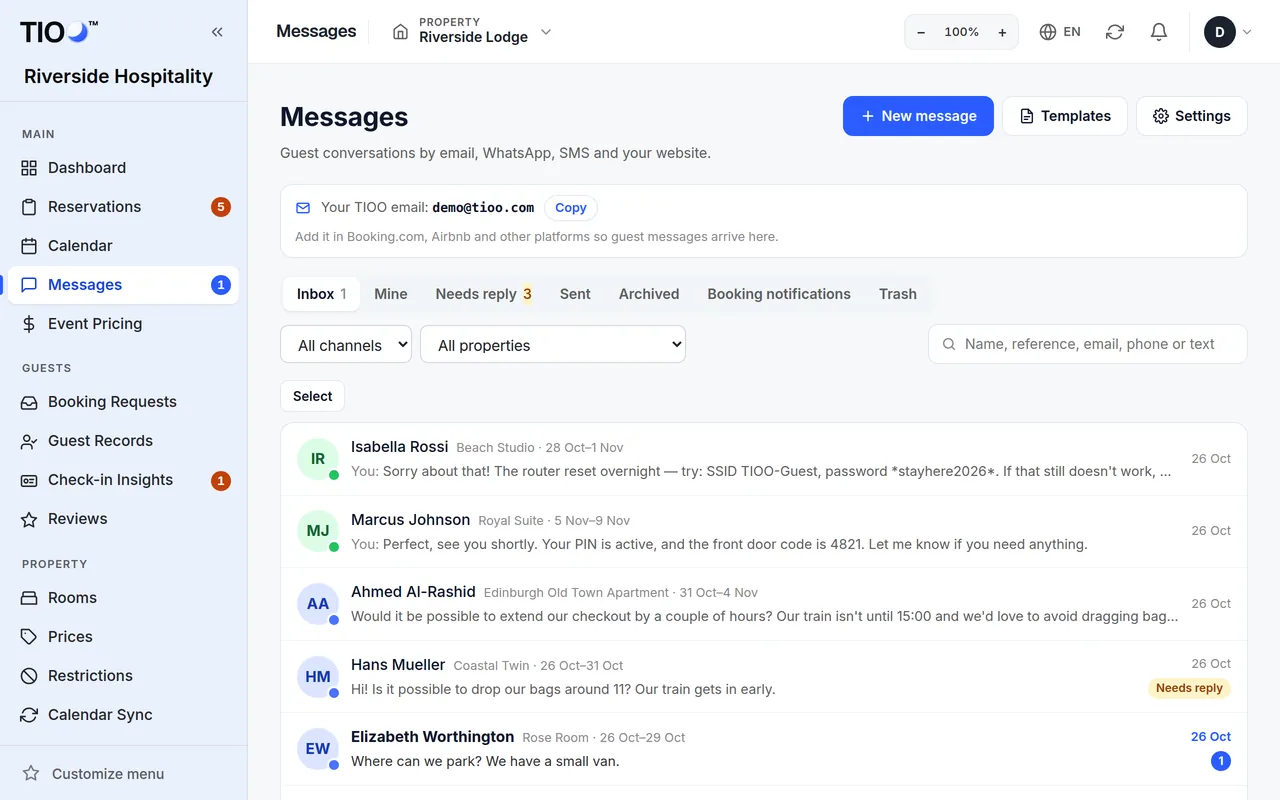
The tabs
- Inbox: every open conversation. The number shows how many are unread.
- Mine: conversations assigned to you. A conversation becomes yours when you reply to it or someone assigns it to you.
- Needs reply: guests who are waiting for an answer.
- Sent: every conversation your team has written in, newest first.
- Archived: conversations you have put away.
- Booking notifications: confirmation, change and cancellation emails from booking sites such as Booking.com and Airbnb. They are kept apart so the Inbox only shows guests. TIOO already uses them to fill in your bookings.
- Trash: conversations you deleted. They are removed for good after 30 days.
Use the search box to find a conversation by name, booking reference, email, phone or words in the message. With several properties you can also filter by property and by channel.
Reply to a guest
- Open Messages.
- Click the conversation. On the right you see the booking it belongs to (dates, room, reference) and Open reservation.
- Under Reply by, pick Email, SMS or WhatsApp.
- To start from ready-made words, choose one under Use a template…. The guest's details are filled in for you.
- Type your answer in the reply box.
- To add a file, click Attach (up to 10 MB per file).
- Click Send (or press Ctrl + Enter).
The guest gets your answer on the channel you picked. Emails go out from your business's @tioo.com address, and the guest's reply comes back into the same conversation.
Note: A guest message in another language has a Translate button under it. It shows the message in your dashboard language.
Texts and WhatsApp
- Texts (SMS) need the Starter plan or higher, and count towards your monthly message allowance. If a guest replied STOP to a text, you can't text them again until they text START.
- WhatsApp only shows when the guest has written to you on WhatsApp. You can write freely for 24 hours after their last WhatsApp message. After that, send an approved WhatsApp template, a text or an email instead.
Keep the inbox tidy
At the top of an open conversation:
- Assigned to: choose who handles it, or Nobody.
- Mark unread: puts it back as unread, for example to deal with later.
- Archive: moves it to Archived. Move to inbox brings it back.
- Trash: deletes it (owners, admins and managers only).
To act on several at once, click Select in the list, tick the conversations, then choose Mark read, Archive or another action.
Templates
Click Templates at the top of Messages to write ready-made replies. In a template you can insert guest details such as {guest_name}, {check_in} and {property_name}; TIOO fills them in when you use it. Owners, admins and managers can write templates.
Who can do what
Owners, admins, managers and receptionists can read, reply and sort messages. Cleaners never see Messages.
Related guides
- Forward your booking emails so guest details fill inSend Booking.com and Airbnb booking emails to your TIOO address and each booking gets the guest's email, phone and booking reference.
- Emails and texts TIOO sends to guests for youEvery message a guest gets from TIOO in your name, when it goes out, which address it comes from and which language it uses.
- Emails aren't arriving (to you or to guests)Checklists for booking emails that don't reach TIOO, alerts that don't reach you, and guest emails or texts that don't go out.